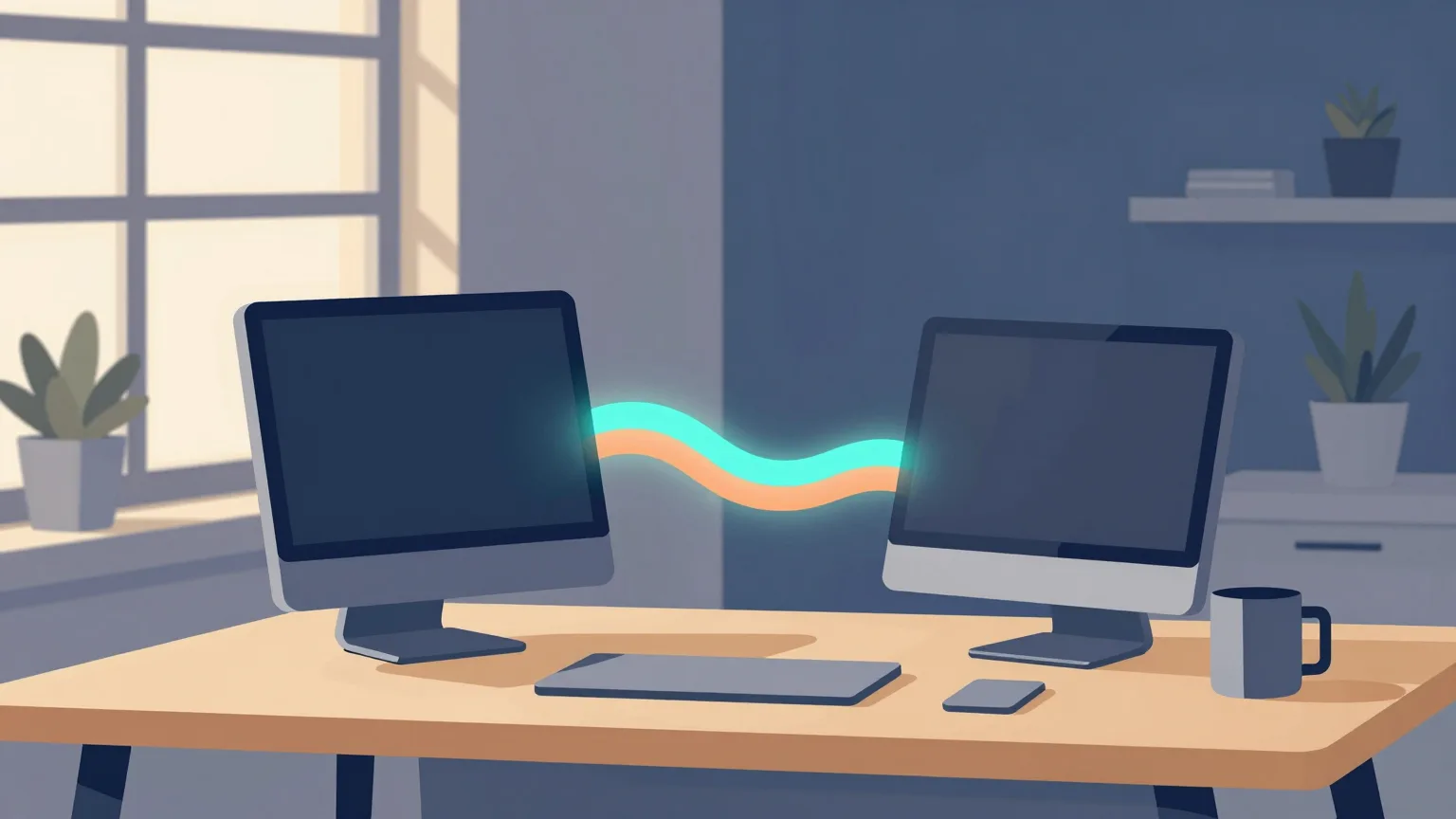
In this setup, two machines serve as local AI workers: an M1 Max MacBook Pro and an M4 Pro Mac mini.
That said, the two machines are not kept running at all times simultaneously.
During those hours, the Mac that is not being used for regular work handles article generation and image generation.
Operating Policy
The confirmed operations are as follows.
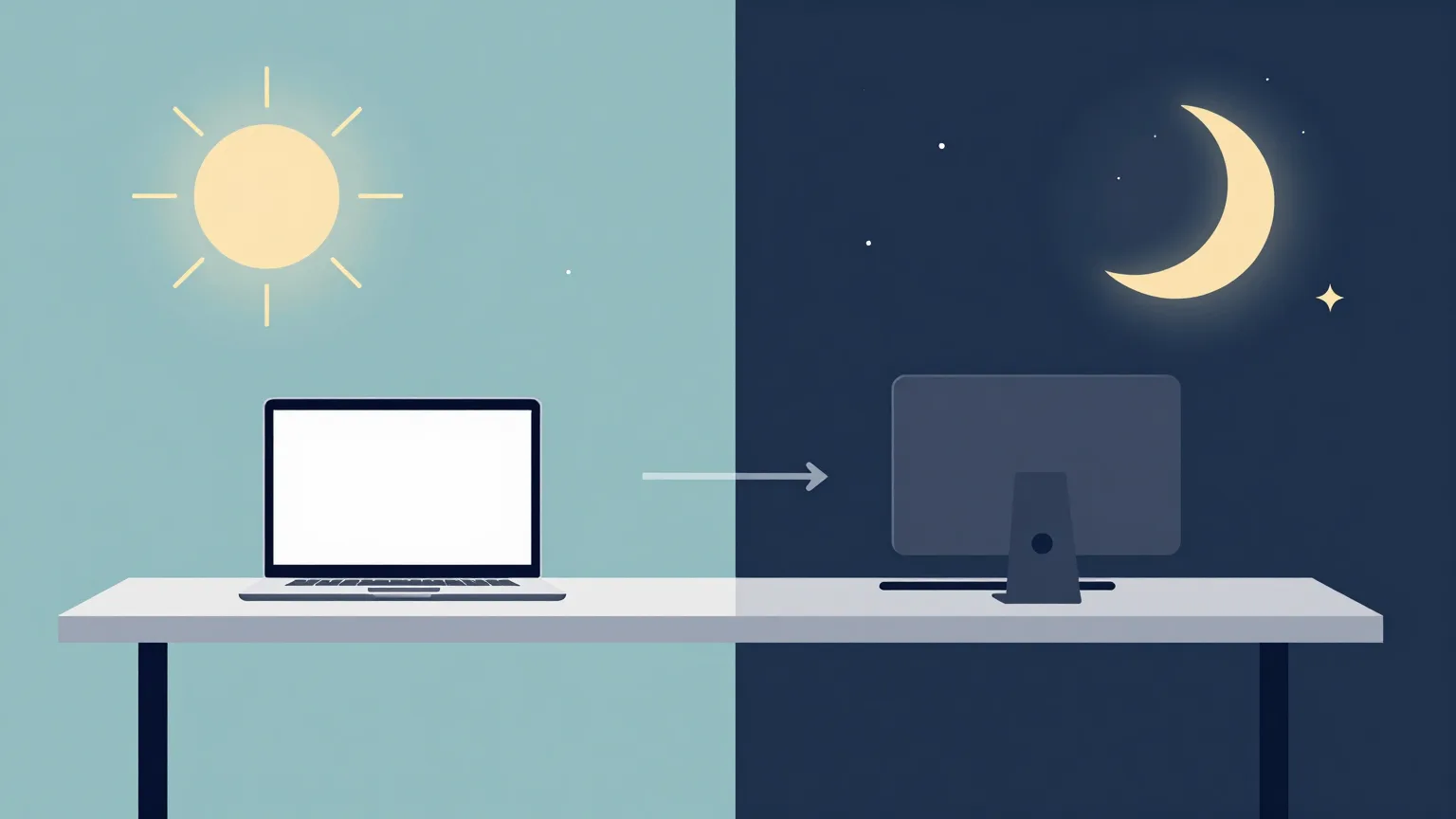
Hours when working from home
- Regular work is done on the Mac mini
- The MacBook Pro is used as the local AI worker
At night or while away
- The MacBook Pro is shut down or taken out
- The Mac mini is used as the local AI worker
Because the Mac mini has many apps open during regular work, heavy apps are closed as needed during the hours it serves as an AI worker.
Do You Still Need to Close Apps with 64GB?
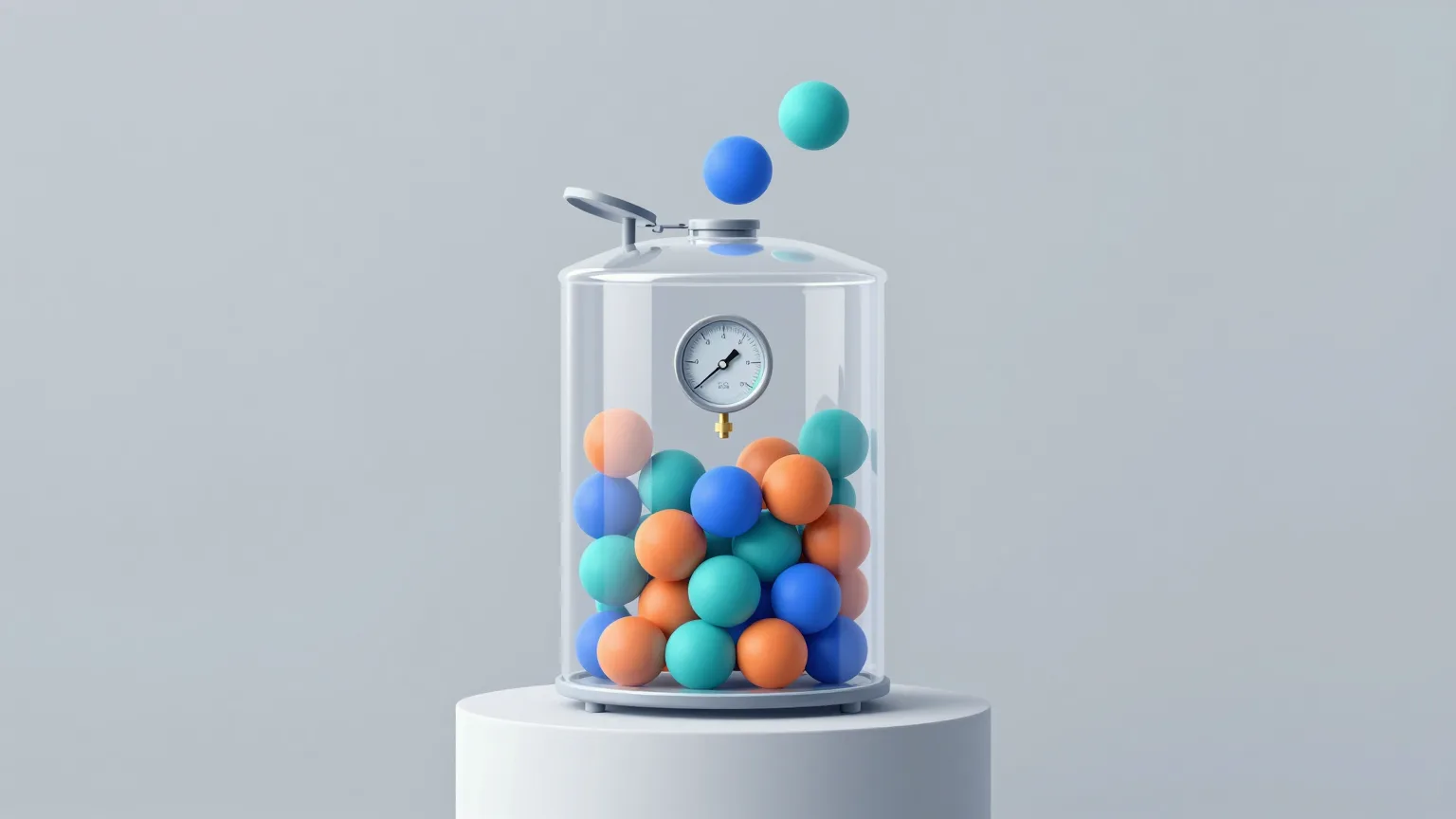
The Mac mini has 64GB of memory, of which about 45GB is in use during regular work.
Even in this state, you do not necessarily have to quit every app.
Since macOS uses free memory as cache, raw usage alone cannot tell you whether memory is running short.
The items to check are the following.
- Memory pressure
- Swap usage
- State after the model is loaded
- Generation speed
- App responsiveness
- Whether anything crashes
If memory pressure stays green during generation and swap does not grow significantly, you can likely keep using the machine as is.
If it turns yellow or red, quit heavy apps such as the following.
- Browsers with a large number of open tabs
- Docker Desktop
- Unnecessary Docker containers
- IDEs
- Multiple AI coding sessions
- Virtual machines
- Image editing apps
- Unused local servers
Setting Up the Same Environment on Both Macs
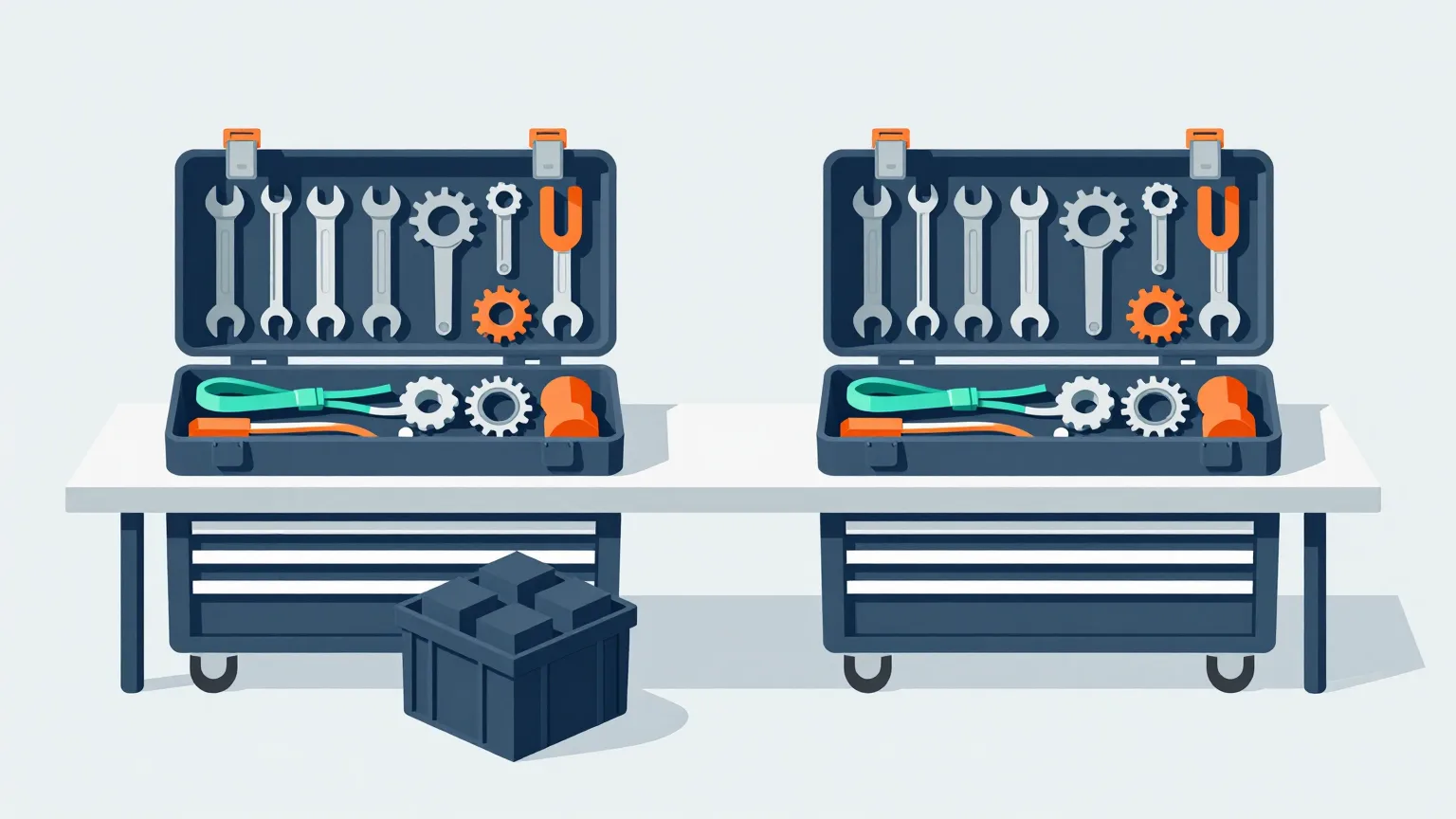
Prepare the same basic environment on both Macs so that either machine can handle the same jobs.
The items to set up on both are as follows.
- Python worker
- Ollama or MLX
- ComfyUI
- The LLMs to use
- The image generation models to use
- ComfyUI workflows
- Required LoRA files and other additional files
- Shared configuration files
- launchd configuration
The worker programs are managed in Git.
Large model files, on the other hand, are kept out of Git and downloaded to each Mac individually.
Model versions and file names are managed in the configuration file so that differences between the two machines are visible.
Switching Manually at First
In the early stage, no complex automatic detection is implemented.
When starting work at home, put things into the following state.
MacBook Pro:ワーカー有効
Mac mini:ワーカー無効
Before heading out or going to bed, switch to the following state.
MacBook Pro:ワーカー無効
Mac mini:ワーカー有効
Candidates for the manual switching method include the following.
- Menu bar app
- macOS Shortcuts
- Shell scripts
- Starting and stopping with launchctl
- A local admin dashboard
For the initial implementation, shell scripts or Shortcuts are sufficient.
Once operations have settled, another option is to build a dedicated menu bar app.
A Configuration That Stays Safe Even When Both Start Together
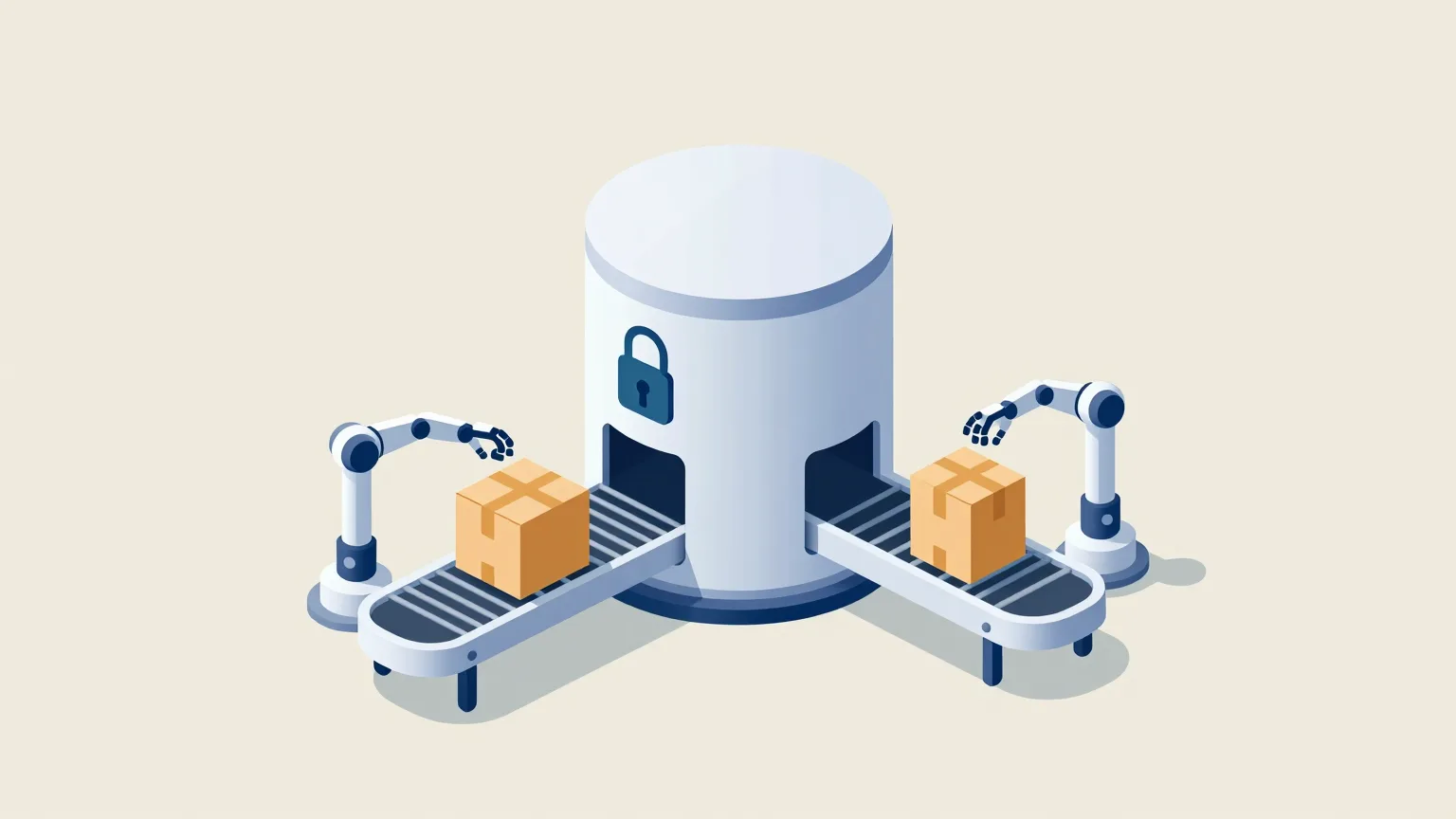
A forgotten switchover could leave both workers running at the same time.
Therefore, the VPS side takes a lock so that even with both running, the same job is never picked up twice.
The design does not depend on having exactly one of the two running at all times.
This also makes usage patterns like the following possible.
- Mac mini handles article generation
- MacBook Pro handles image generation
- The two machines process different jobs in parallel
- If one stops, the other takes over
Initial operation relies on manual switching, but the foundation is built to support multiple workers.
Preventing Sleep
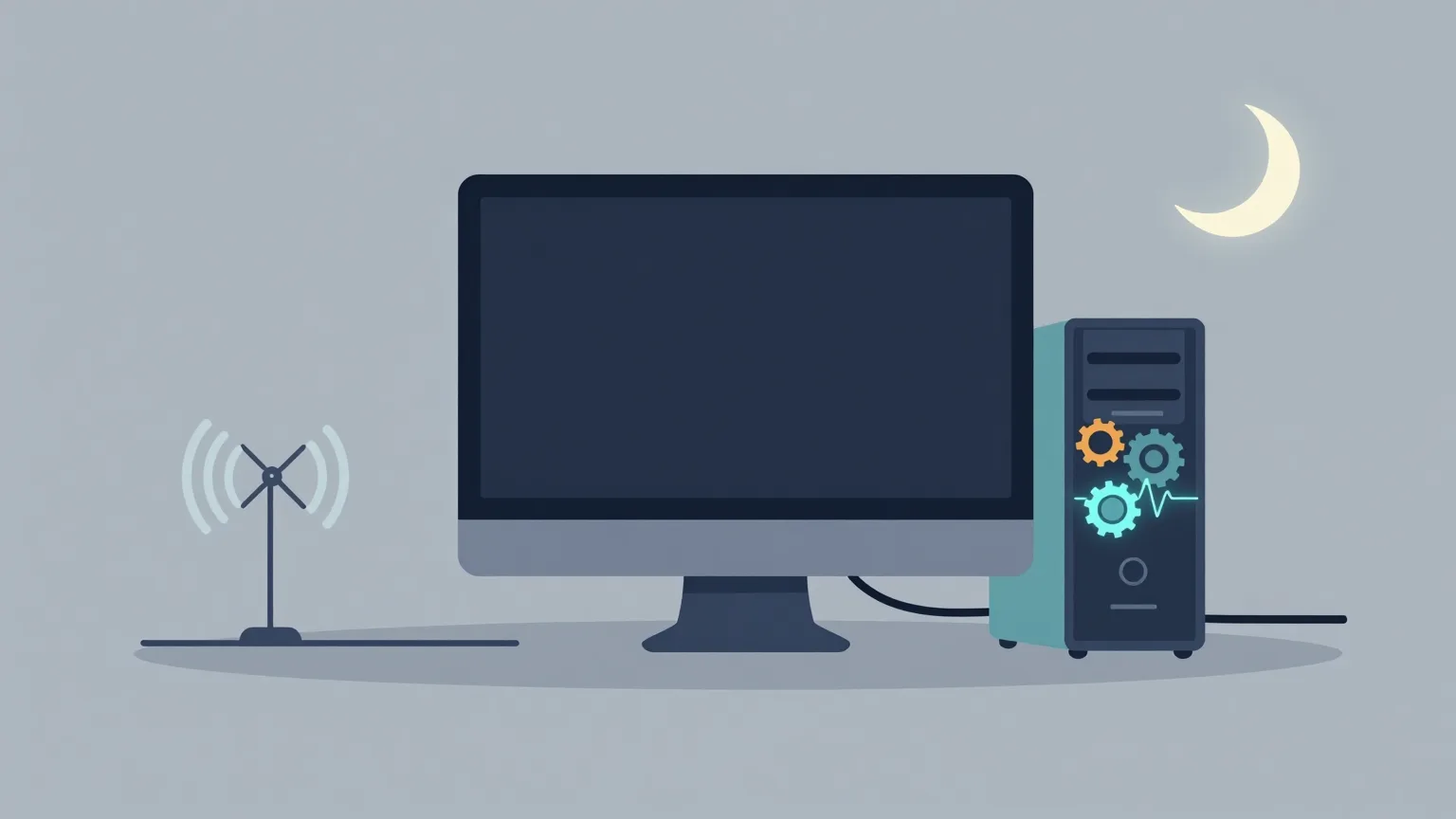
When a Mac goes to sleep, long polling and generation processes stop as well.
While a Mac is serving as an AI worker, the system as a whole is kept from going to sleep automatically.
That said, there is no need to keep the display lit at all times.
The ideal state is as follows.
- The display can turn off
- The system keeps running
- Network connectivity is maintained
- Workers restart automatically
- Do not rely too heavily on automatic login, even after a reboot
Using launchd on macOS, workers are configured to start automatically when they stop or when the Mac restarts.
Battery Care for the MacBook Pro
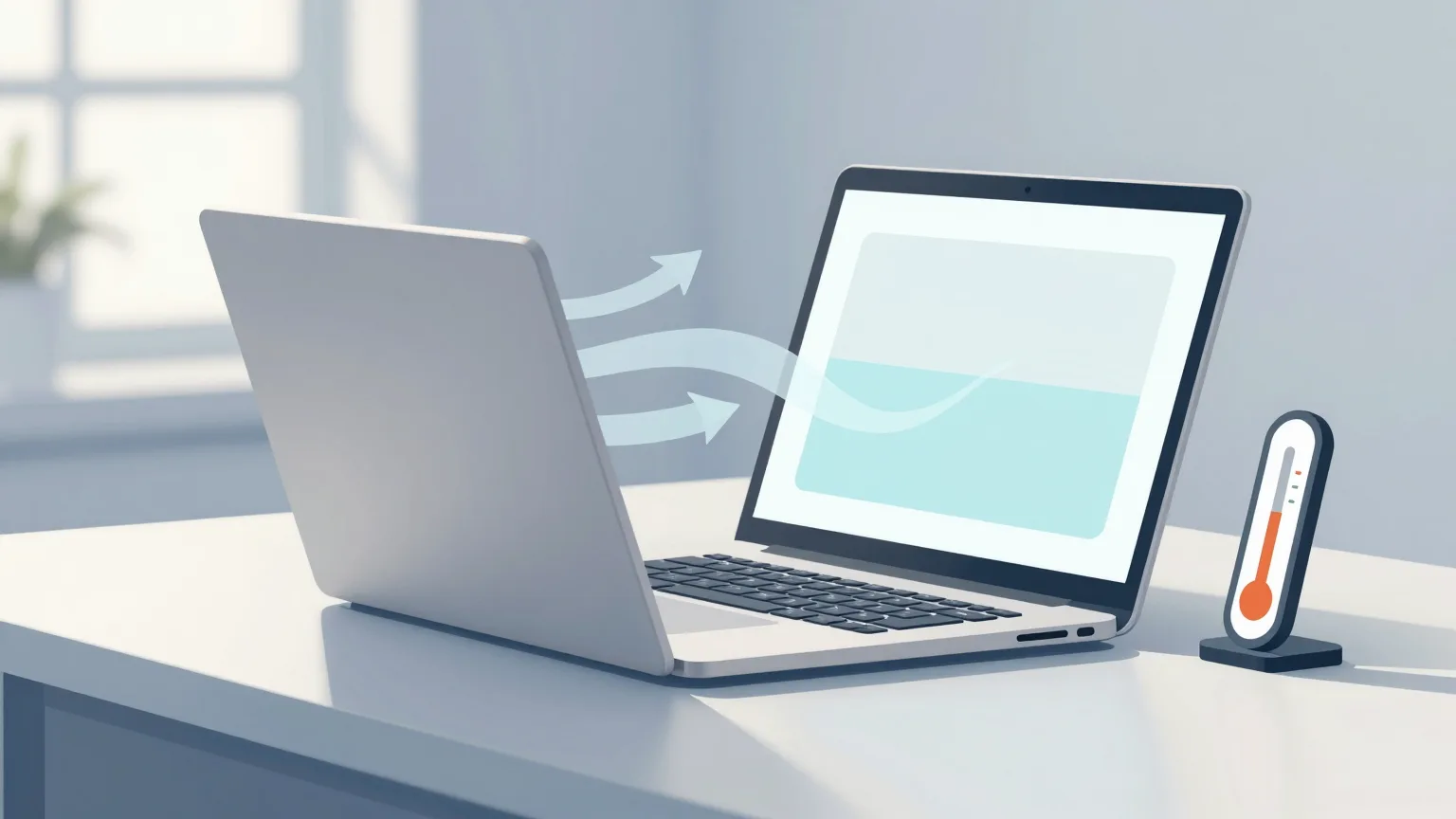
Using a MacBook Pro as a local AI worker requires attention to battery and heat.
Article generation and image generation continuously consume CPU, GPU, and memory.
As countermeasures, the following practices are applied.
- Set a lower charging limit
- Use a stand with good airflow
- Avoid long processing sessions in hot places
- Do not block the air intake or exhaust
- Do not keep unnecessary models loaded
- Leave long overnight processing to the Mac mini
- Check battery condition regularly
The MacBook Pro is used as a worker during working-from-home hours, while always-on duty and overnight processing are assigned to the battery-less Mac mini.
Automatic Switching in the Future
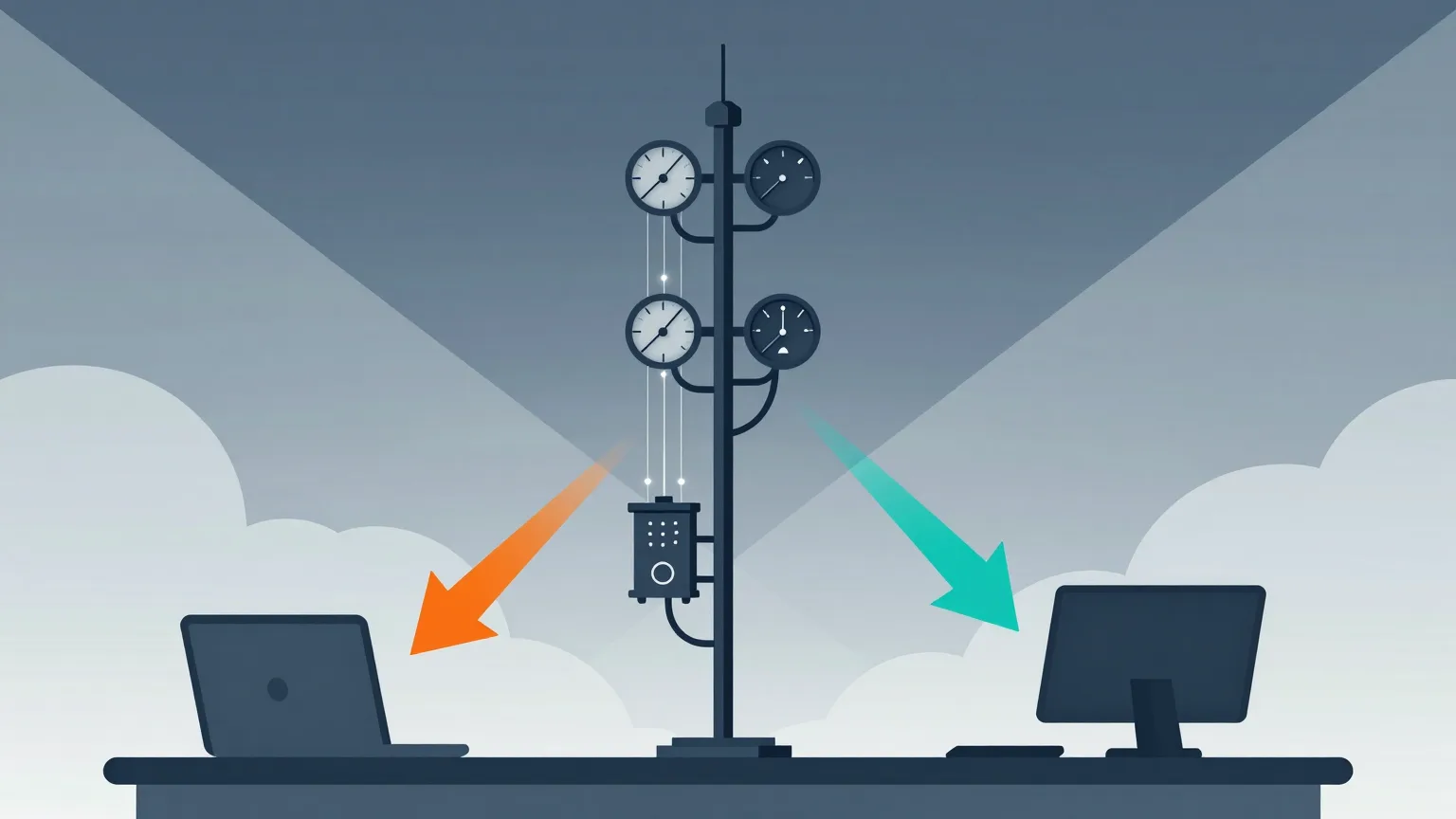
Once manual switching has stabilized, automation can be considered.
For example, each worker sends the following information to the VPS.
- Running status
- Current memory pressure
- Free memory
- CPU usage
- GPU load
- Power connection status
- Battery level
- Number of jobs currently being processed
- Models it can handle
Based on this information, the VPS hands jobs to the appropriate worker.
For example, the following rules are conceivable.
- Prefer the MacBook Pro for text generation when it is online
- Prefer the Mac mini at night
- Do not hand jobs to the Mac mini when its memory pressure is high
- Send image generation to whichever Mac is faster
- Do not hand heavy jobs to a MacBook Pro running on battery
That said, automatic switching will not be added in the initial stage.
First, observe actual usage and performance, then add only the conditions that prove necessary.
Summary
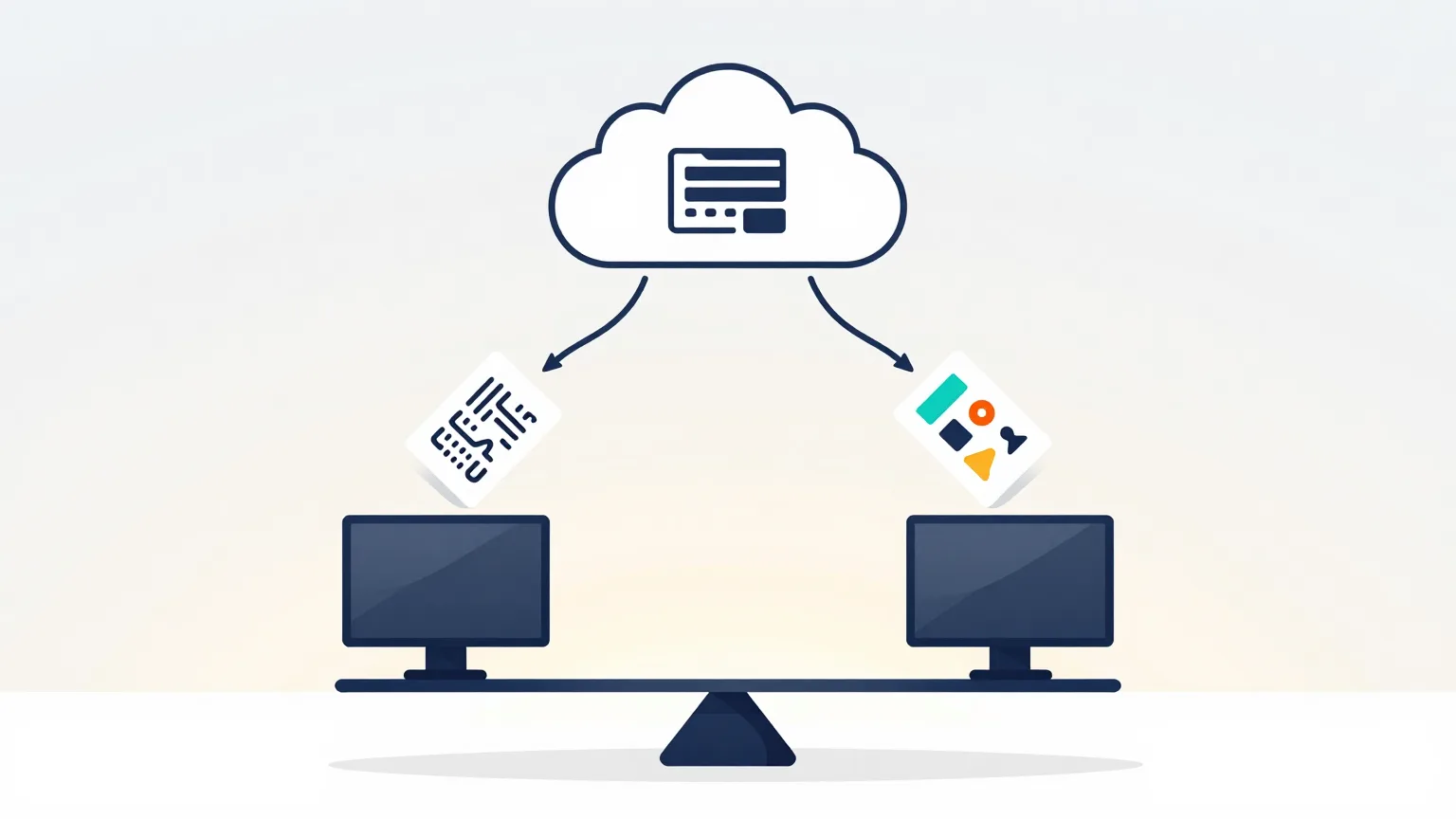
By splitting duties between the M1 Max MacBook Pro and the M4 Pro Mac mini, you can run local generative AI without getting in the way of your regular work.
The MacBook Pro serves as the worker during working-from-home hours, and the Mac mini takes over at night or while you are out.
Switching is manual at first, but the VPS side supports multiple workers and is designed to avoid double processing even after a forgotten switchover or simultaneous operation.
Next time, we will build the pipeline that sends locally generated articles and images back to the VPS and registers them as drafts in Payload CMS.