When you want to use generative AI for writing articles or generating images, one concern is the cost of API usage.
External generative AI APIs are easy to adopt and give you immediate access to high-performance models, but the fees keep growing as the number of operations increases. In particular, automating article writing or featured-image generation can quietly run up a larger bill than expected.
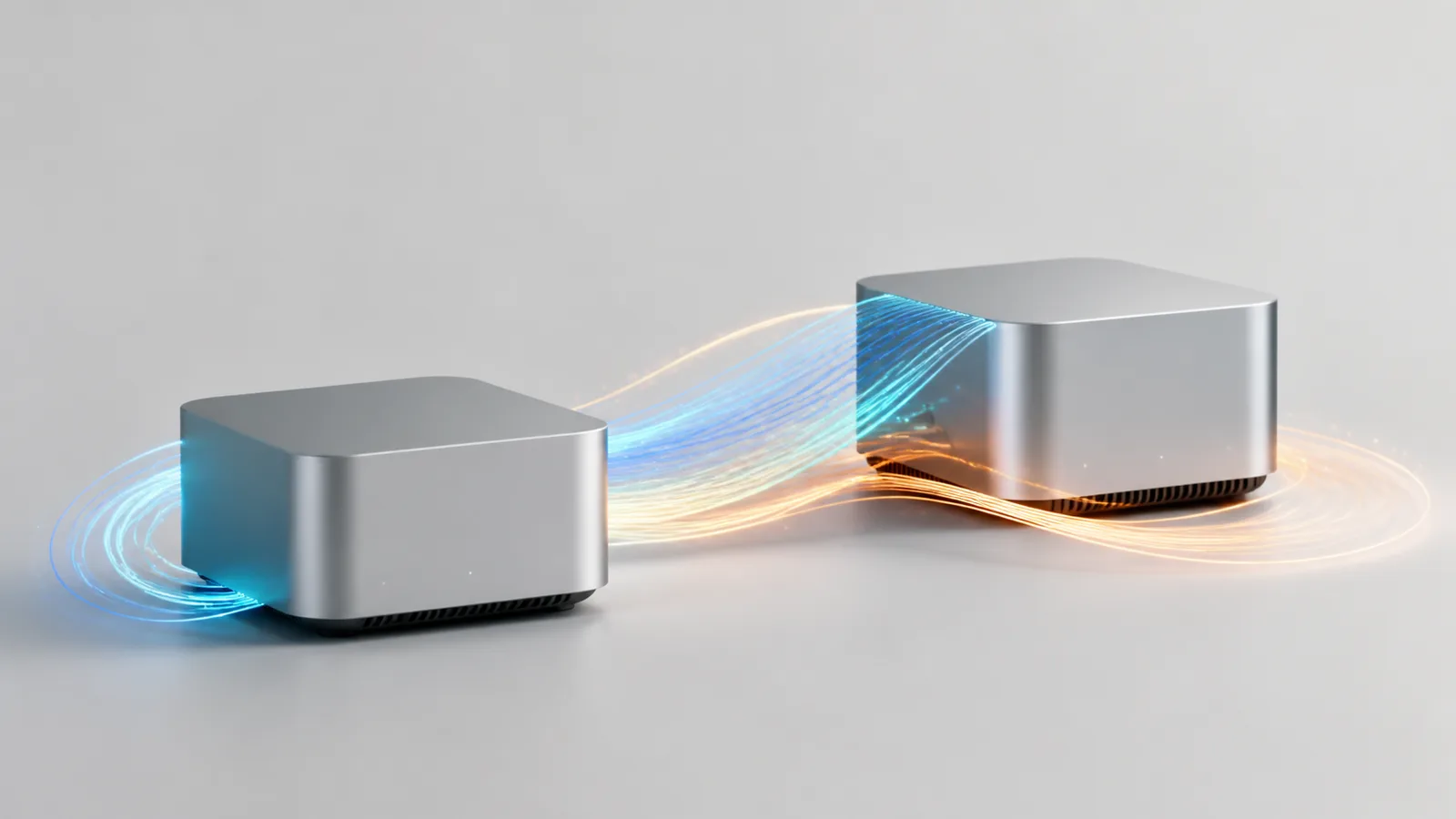
So I decided to build an environment that uses the Macs I already have at home to generate articles and images locally.
The two machines I'll use are:
- A MacBook Pro with an M1 Max chip and 64GB of memory
- A Mac mini with an M4 Pro chip and 64GB of memory
This isn't just about running a local LLM on a Mac.
I'll also build a system where generation jobs are registered on a ConoHa VPS, my Mac at home picks up the work and generates articles and images, and the results are sent back to the VPS.
Why Use Local Generative AI

My main goal this time is to keep external API costs as low as possible.
With local LLMs and local image generation, you don't incur API charges every time you generate something.
That said, it isn't completely free.
The main costs involved are the following:
- Electricity to run the Macs
- Storage for the models
- Heat and wear on the Macs themselves
- Time spent building and maintaining the environment
- Checking the usage terms and licenses for each model
With external APIs, costs vary depending on how much you generate, whereas local generation makes use of the Macs you already own.
A big advantage of this is that monthly costs become much easier to predict.
Dividing Roles Between the Two Macs
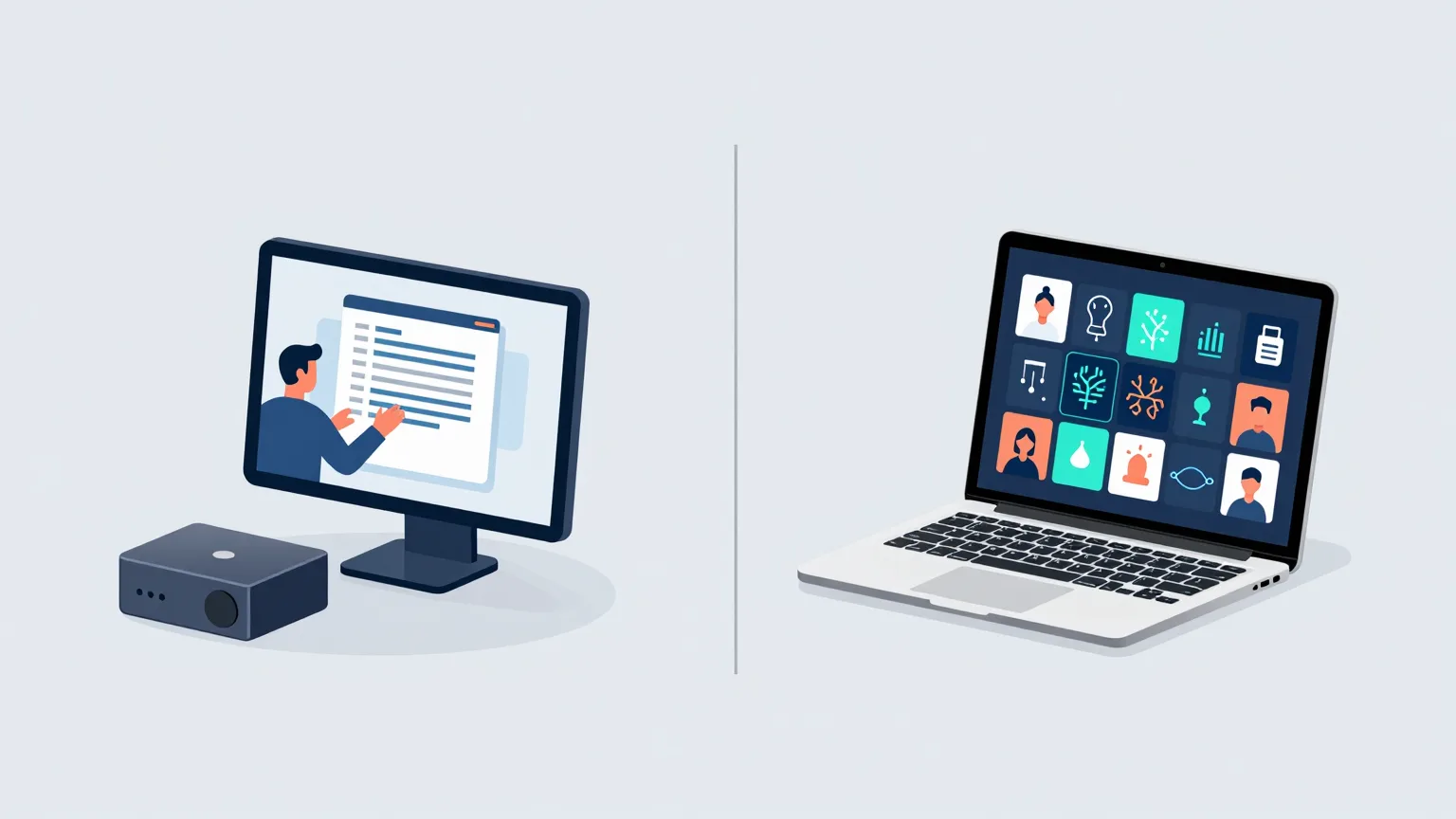
Here is the setup I'm planning:
While I'm working at home

I'll use the Mac mini for my day-to-day work and run the unused MacBook Pro as a local AI worker.
At night or while I'm out

The MacBook Pro will be shut down or taken out with me, so the Mac mini that stays at home will serve as the local AI worker.
In other words, rather than permanently dedicating one Mac as the AI machine, I'll use whichever Mac happens to be free at the time.
This keeps my regular work uninterrupted while making full use of both machines on hand.
Which Is More Powerful: M1 Max or M4 Pro?
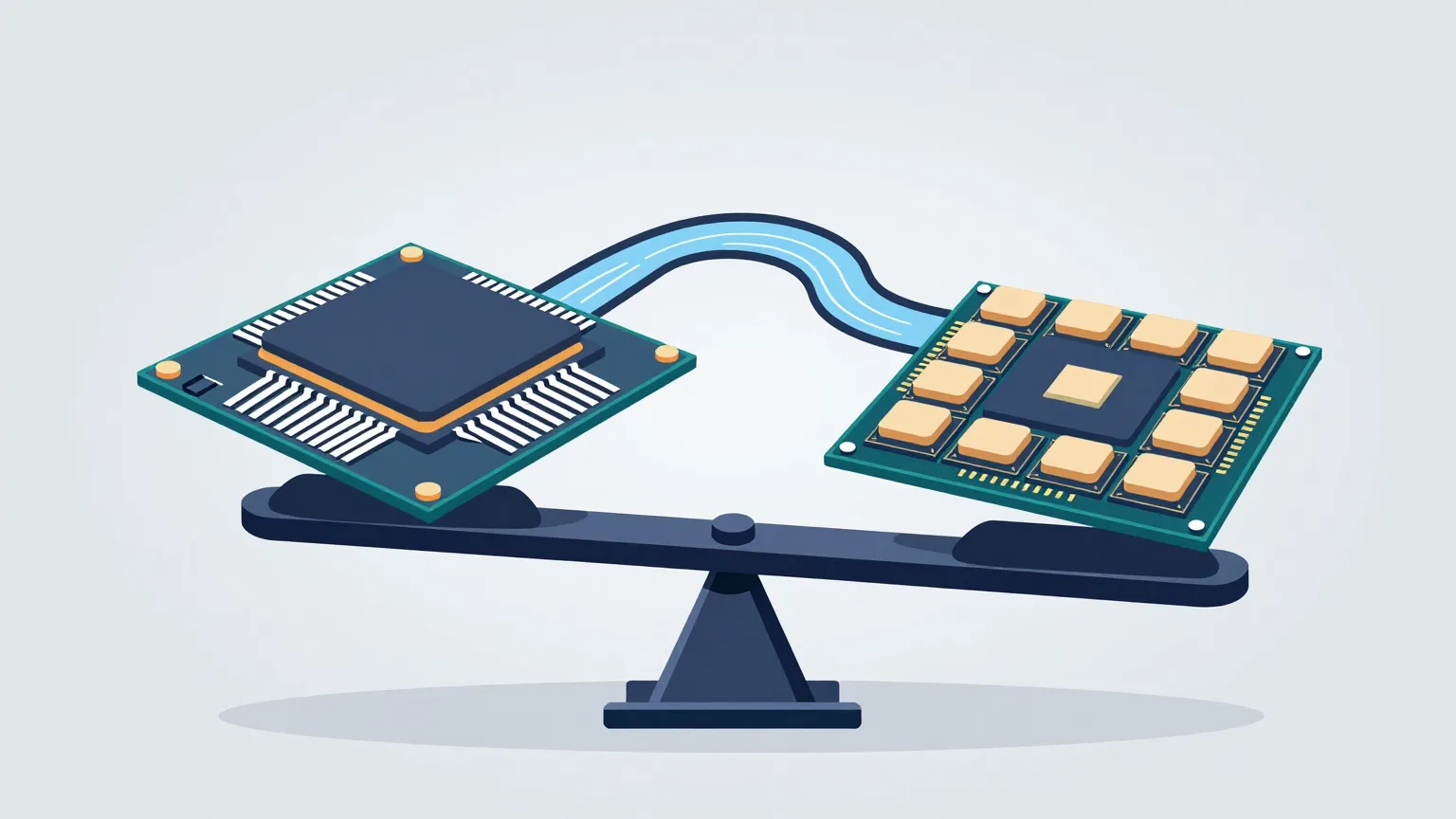
The M4 Pro is newer than the M1 Max, and its configuration tends to be advantageous in CPU performance.
The M1 Max, on the other hand, has strengths in GPU core count and memory bandwidth, so depending on the local LLM or image-generation workload, it may deliver higher performance than the M4 Pro.
It doesn't necessarily follow that the newer M4 Pro is faster at everything.
Actual performance varies with the following factors:
- The model you use
- The model's quantization method
- The application you use
- The length of the input text
- The length of the output text
- The image resolution
- Other apps running at the same time
- Memory pressure and swap usage
For that reason, I plan to benchmark both Macs with the same model under the same conditions and assign their roles by use case.
No Direct Connection from the VPS to the Home Mac

It is also possible to have the VPS directly access the local LLM on the home Mac.
However, that approach would require the following on the home side:
- Opening ports on the router
- Dealing with a dynamic IP address
- Restricting access from the outside
- Exposing an API on the home Mac
- Countermeasures against unauthorized access
So this time, instead of connecting from the VPS to the home Mac, I'll adopt a pull-based approach in which the Mac fetches work from the VPS.
The processing flow looks like this:
- Register article-generation and image-generation jobs on the VPS
- The worker on the Mac queries the VPS
- If there are unprocessed jobs, it fetches them
- Run the local generative AI on the Mac
- Send the generated results back to the VPS
- The VPS stores the content
- When needed, register it as a draft in Payload CMS
Since the Mac only makes ordinary HTTPS requests to the VPS, there is no need to expose any ports on the home network connection.
What We'll Build in This Series
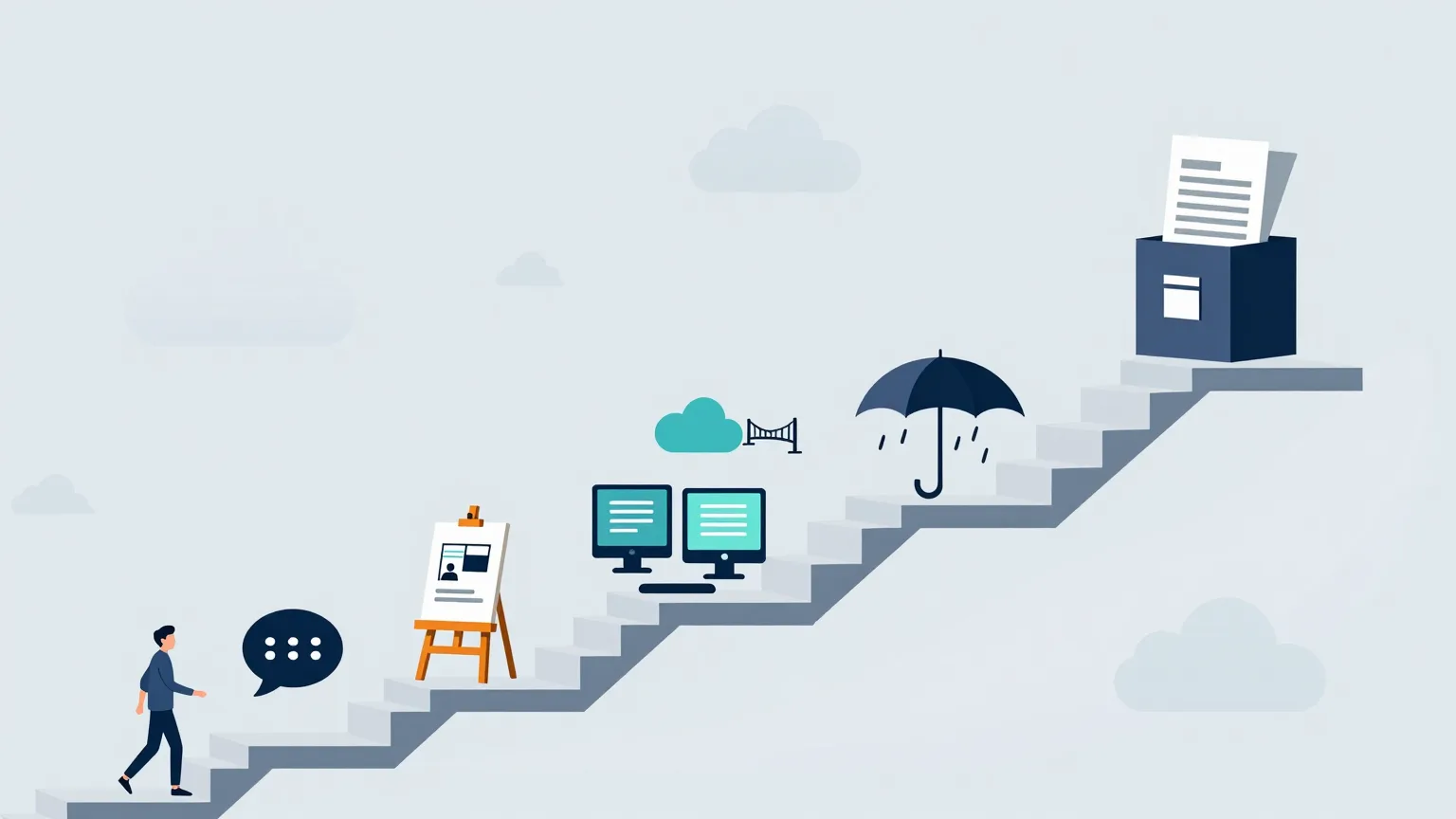
In this series, I'll build the environment in the following order:
- Running a local LLM on a Mac
- Running local image generation on a Mac
- Connecting the ConoHa VPS and the home Mac
- Handling duplicate processing and communication failures
- Switching between the MacBook Pro and the Mac mini
- Registering articles and images in Payload CMS
Rather than automating everything from the start, I'll begin by processing a single text-generation job on the Mac and returning the result to the VPS.
After that, I'll add image generation, failure handling, switching between the two Macs, and Payload CMS integration step by step.
Conclusion
What I'm building here is not just a local LLM environment.
It is a local AI worker environment in which the M1 Max MacBook Pro and the M4 Pro Mac mini are used flexibly depending on the situation, letting the VPS delegate article- and image-generation jobs to them.
This is not a wholesale rejection of external APIs.
Combining both is also an option: use external APIs when high quality or processing speed is required, and handle ongoing article writing and image generation locally.
To start, I'll get a local LLM running on an Apple silicon Mac.